Moovv1.0.44

Mass VMware migration to Proxmox, KVM and HPE VM Essentials using Veeam backups.

Moov is a migration tool that converts and restores virtual machines from Veeam Backup & Replication restore points onto Proxmox VE, oVirt / OLVM / RHV and HPE VM Essentials, without touching the source virtualized environment during the migration.

  • 3
    migration targets
  • ≤ 60 s
    RTO with Instant Migration
  • 0
    connections to the source environment
Source environment
out of scope
Veeam Backup & Replication V13
source: restore point
Moov appliance
core + disposable helpers
customize · NBD · pivot
  • Proxmox VE8.x / 9.x
  • oVirt / OLVM4.5+
  • HPE VM EssentialsMorpheus 8.1.x · 9.0.x
How it works

A Core appliance plus disposable helpers on the target hypervisor.

The source of every VM is Veeam: REST metadata or the published backup disk. Moov never connects to vCenter or ESXi.

  • 01
    Pre-flight Inspector

    Scans Veeam backups, classifies each VM (OS, disks, VirtIO readiness) and estimates the capacity needed.

  • 02
    Wave planning

    The operator plans a wave in the web console and picks a target host and migration mode per VM.

  • 03
    Publish and dispatch

    The Core publishes the restore point from Veeam and dispatches the work to a helper, which serves the disk over NBD and drives the conversion or boot.

  • 04
    Boot and pivot

    Progress streams live to the console; the VM boots, the guest agent comes online and, for instant migration, the disk pivots to local storage.

Source environment
out of scope
Veeam Backup & Replication V13
Backup repository · VBK / VIB
SOURCE
Moov Appliance
moov-core: web console · REST API (:9093)
orchestrator · embedded SQLite · local CA · mTLS
moov-helper: local helper
PRIMARY
Operator
web browser
HTTPS :9093
mTLS · gRPC
Additional helpers
HELPER
Same appliance image
Horizontal scaling of the migration
REST / SSH / libvirt
Migration targets
  • Proxmox VE
  • oVirt / OLVM / RHV
  • HPE VM Essentials
Active data flowManagement / consoleOut of scope
Architecture: Veeam source, Moov appliance (core + local helper), additional helpers and migration targets.
Migration modes

Two modes, depending on how much downtime each VM tolerates.

IVMR

Instant VM Migration

RTO · ≤ 60 s to boot

For critical VMs. The VM boots immediately on the target from the backup (iSCSI/NBD) while its disks migrate in the background. When the mirror completes, the pivot leaves it running entirely on target storage.

Cold

Cold Migration

RTO · 15 to 60 min per VM

Copies the disks to the target and leaves the VM created and powered off, so the operator boots it in their own window. No backup dependency at boot time.

Wave Engine

Both modes run through the Wave Engine, which schedules many VMs concurrently with per-helper capacity limits derived from the host's CPU and RAM: roughly 1 vCPU and 2 GiB per VM, with global capacity being the sum of the fleet.

No vSphere dependency

The source of every VM is Veeam. Moov never connects to vCenter or ESXi.

Drivers built in

VirtIO drivers are prepared automatically for Linux and Windows guests, including modern Windows using inbox drivers.

Network preserved

Static IPs and multi-NIC layouts are carried over to the migrated VM, or reassigned per NIC from the console.

Runs as an appliance

A self-contained image with a first-boot wizard and a web console. No external identity provider or database to stand up.

VM preparation

The Virtual Machine is made KVM-ready before it boots.

The customize stage runs offline against the mounted disk, with no auxiliary appliance and no KVM on the helper, adapting the guest OS so it boots and operates on the target.

customize · virt-v2v in-place
  • VirtIO driver injection

    Drivers are prepared on Windows and Linux. On Windows, vioscsi and viostor are injected with the VM powered off, and NetKVM, Balloon and vioserial are installed on the first boot. The injection creates the VirtIO evidence that enables the virtio-scsi bus.

  • IP address preserved

    Static IPs are applied to every interface according to each NIC's PCI slot (multi-NIC Windows and Linux), or reassigned per NIC from the console.

  • VMware Tools removal

    On Windows VMs, VMware Tools are uninstalled on the first boot on the target, so they don't compete with the KVM drivers and agent.

  • QEMU Guest Agent

    QGA is prepared during customize and, on Windows, installed on the first boot; its ping response confirms the migrated VM is alive and enables IP queries, fsfreeze and command execution.

  • virtio-scsi disk bus

    The paravirtualized controller becomes the default bus when there is evidence of VirtIO support in the guest, outperforming SATA/IDE.

  • Boot repair

    BCD fixup on Windows, plus seeding or repairing the ESP partition when the guest boots via UEFI.

  • Sparsify optimization

    Empty or zeroed blocks are discarded during conversion, cutting size and transfer time.

  • Target agent

    On HPE VM Essentials the Morpheus agent is installed post-pivot through the QEMU Guest Agent's guest-exec.

Compatibility

What Moov supports, with concrete versions.

The exact list of sources, targets, guests and storage Moov is validated on. If your combination is not here, it is probably not supported yet.

Source

  • Veeam Backup & Replication V13, through the REST API and the Data Integration API
  • Restore points from VM image backups
  • Disk, object storage and hardened repositories, with repository selection
  • The backup is not modified and the source environment takes no part in the migration
  • No VMware library or API: Moov does not use or bundle VDDK

Targets

  • Proxmox VE 8.x and 9.x
  • oVirt, Oracle Linux Virtualization Manager and Red Hat Virtualization 4.5 or newer
  • HPE VM Essentials on Morpheus 8.1.x and 9.0.x

Linux guests

  • RHEL, Rocky, AlmaLinux and Oracle Linux, 7 through 10
  • SUSE Linux Enterprise Server 12 and 15
  • Debian 11, 12 and 13
  • Ubuntu 20.04, 22.04 and 24.04
  • BIOS and UEFI boot, LVM spread over several disks and /boot separate from the root

Windows guests

  • Windows Server 2012 and later, with VirtIO driver injection
  • virtio-win 0.1.271 by default, with 0.1.302 and 0.1.285 included, 0.1.215 for Windows Server 2012 and 2012 R2, and the option to upload others
  • Oracle VirtIO Drivers for Windows for OLVM targets
  • BIOS and MBR disks, even when the system does not live on disk 0
  • Static IP preserved on multi-NIC guests, matched by MAC

Target storage

  • File based: NFS, local directory and GFS2
  • Block based: LVM and LVM-thin over iSCSI or Fibre Channel, ZFS and Ceph RBD
  • Per-disk placement, with a different storage for each disk of a VM
  • On block storage each disk reserves up to 1.1 times its provisioned size while it migrates

Veeam license required

  • Veeam Data Platform Foundation, Advanced or Premium under Veeam Universal License
  • Evaluation and NFR licenses work
  • Veeam Backup & Replication Community Edition is not supported
  • 36countries downloaded Moov
  • 152distinct networks downloaded it
  • 496 GBof images served

Measured over the last 29 days of downloads. These come from the file server: Moov collects no data from your installations or from what you migrate with them.

Quickstart

From deployed appliance to multiple VMs running in ~20 minutes.

Minimum end-to-end run. Prerequisite: the appliance imported and powered on, with network access to the Veeam server and the target hypervisor.

  1. 01
    First boot and login

    Complete the text wizard (Primary role, network, hostname, time, admin account). Note the CA fingerprint and the recovery code.

  2. 02
    Connect Veeam

    Under Connections → Veeam, add your Veeam B&R V13 server and test the connection until the status is healthy.

  3. 03
    Add a target

    Under Connections → Targets, add Proxmox VE, oVirt or HPE VM Essentials. The wizard bootstraps credentials automatically.

  4. 04
    Deploy a helper

    Pick the target and accept the defaults (8 vCPU / 16 GB / 50 GB). The helper registers over mTLS and becomes Active.

  5. 05
    Preflight one VM

    Scan the Veeam catalog, pick one VM and run the disk and hardware analysis. Confirm it lands in the Automatic bucket.

  6. 06
    Launch one Instant Migration

    Three-step wizard: source and VM, target and mode, placement (node, storage, network). The VM boots straight from the backup.

  7. 07
    Verify the booted VM

    Follow live progress: per-VM timeline, per-disk progress and event log. Once the pivot completes, the VM runs entirely on the target.

The console

The whole flow from one web console.

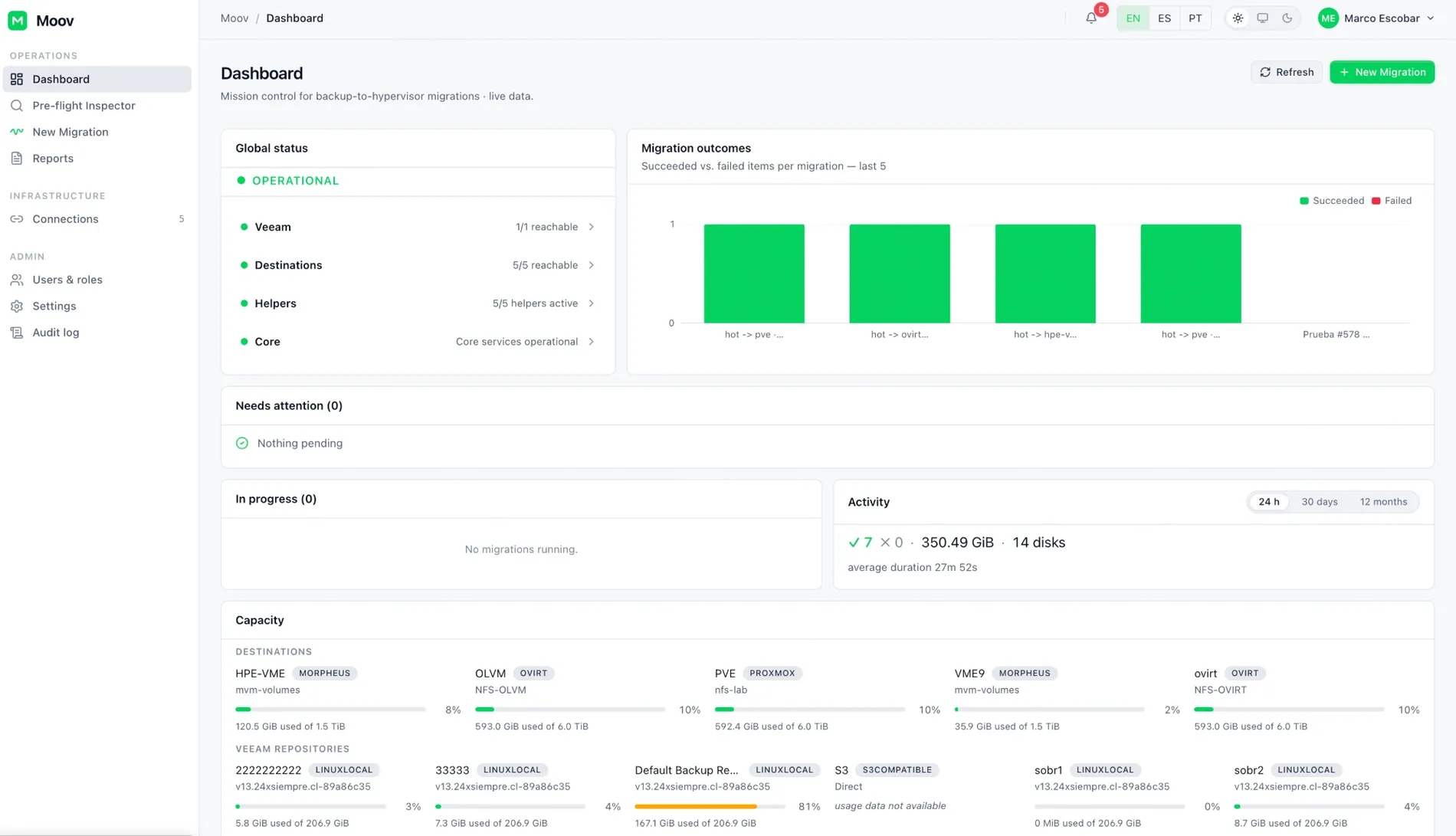
Dashboard: global status, outcomes of the latest migrations and capacity per target.Dashboard: global status, outcomes of the latest migrations and capacity per target.
Dashboard: global status, outcomes of the latest migrations and capacity per target.
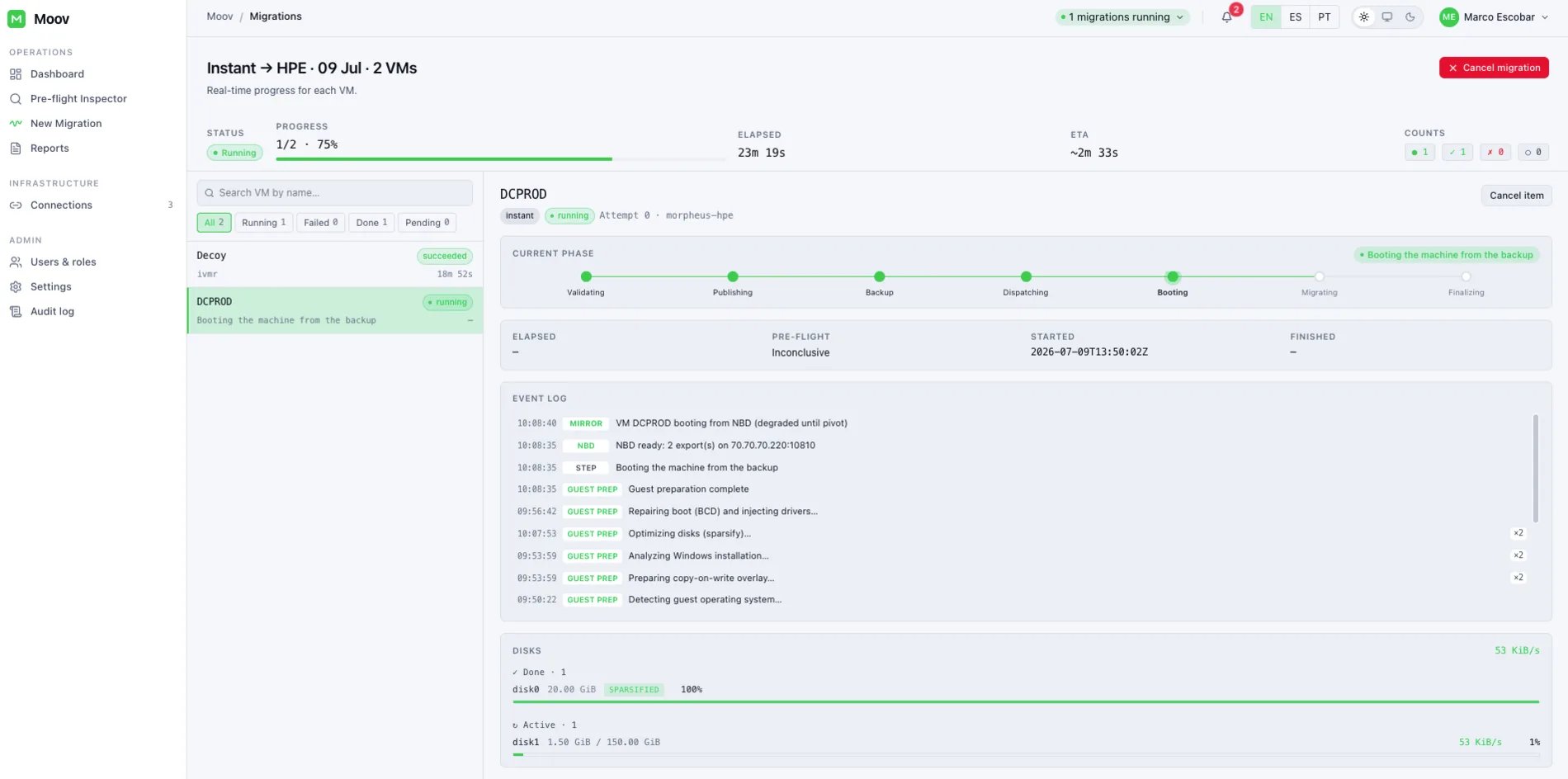
Live migration: per-disk progress and event log.Live migration: per-disk progress and event log.
Live migration: per-disk progress and event log.
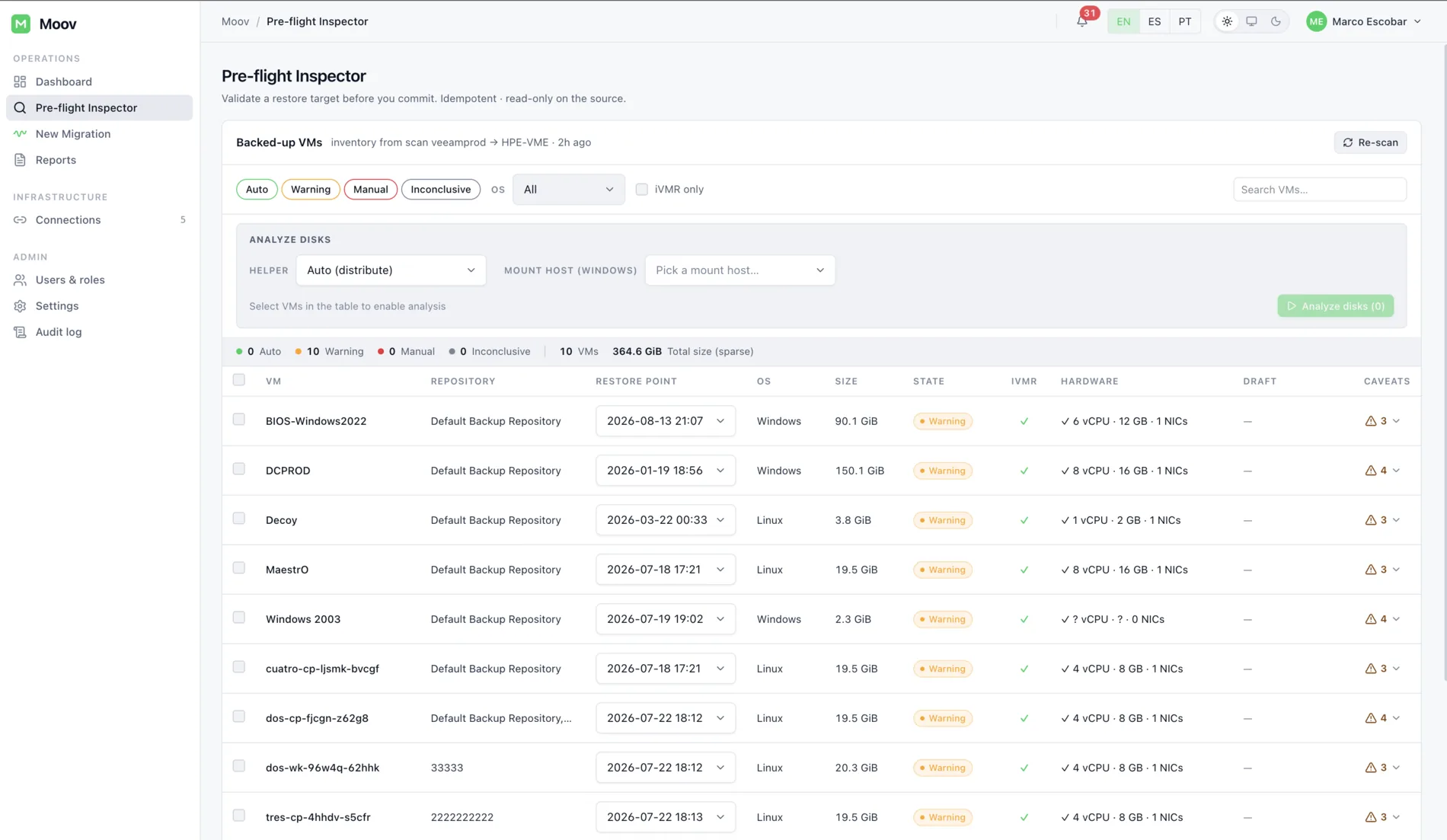
Preflight: Veeam catalog inventory and per-VM classification.Preflight: Veeam catalog inventory and per-VM classification.
Preflight: Veeam catalog inventory and per-VM classification.
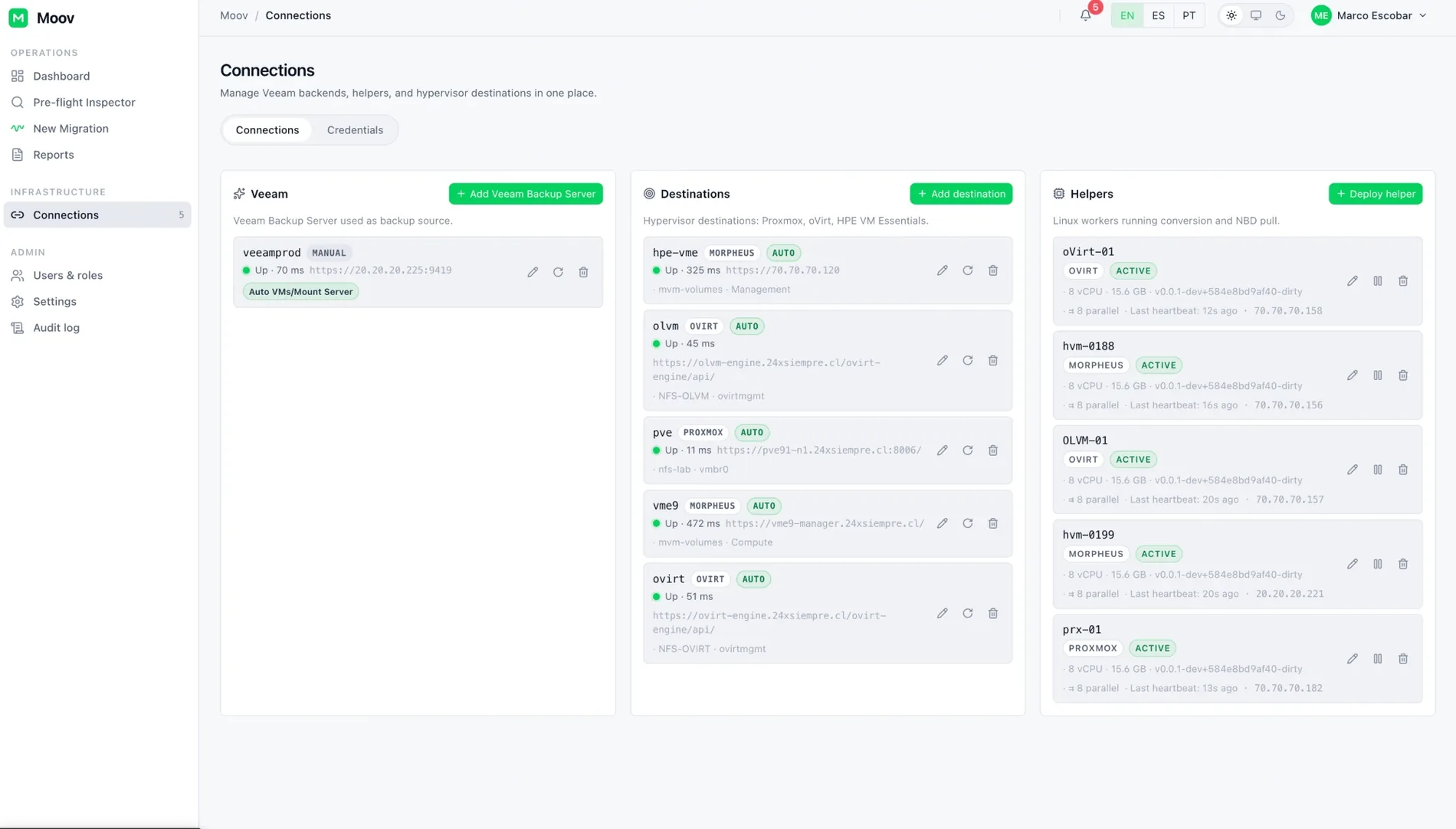
Connections: Veeam, targets and helpers with automatic bootstrap.Connections: Veeam, targets and helpers with automatic bootstrap.
Connections: Veeam, targets and helpers with automatic bootstrap.

Security

Encrypted credentials, mTLS between components, no external IdP.

  • Local authentication

    Passwords hashed with bcrypt, sessions with signed JWT and role-based access control. No external identity provider required.

  • Encrypted credentials

    Credentials encrypted with AES-256-GCM. The master key is shown once at bootstrap as a recovery code: that code is the key, so it must be kept with the same care.

  • Helpers over mTLS

    Helpers authenticate to the Core with mutual TLS via single-use registration tokens.

  • Verified artifacts

    Base image, VirtIO and guest agents are checksum-verified on download.

Updates

The appliance updates itself, and its fleet of helpers.

Since v1.0.38 updating happens from the console: the appliance verifies, applies and, if anything goes wrong, returns to the previous version on its own. No reinstall, no recreating helpers, but they do need updating from the same console: a helper on the previous version is still accepted, which is exactly why it is easy to forget.

  • Signed bundles

    Every update is signed with Ed25519 and carries a SHA-256 per file. The privileged boundary re-verifies signature and hashes before applying anything.

  • Two channels

    Moov binaries and operating-system patches update separately, each with its own state in the console.

  • Automatic rollback

    If the new Core cannot prove it is healthy, the appliance rolls back to the previous version without operator intervention.

  • Fleet in step

    The appliance mirrors the Debian archive for its helpers and restarts hosts from the same table. Keep Core and helpers on the same version: an older helper is accepted, but without the newer fixes.

Releases

What changed in the latest versions.

v1.0.44Latest

Field fixes for HPE VM Essentials and Windows, VMs with many disks and the restore point in plain sight

Supersedes v1.0.43. It gathers fixes reported from the field, most of them for HPE VM Essentials and for Windows guests, plus what is needed to migrate VMs with many disks. Most of them run on the helper: after upgrading the appliance, open Connections › Helpers › Update all.

  • Windows with DHCP keeps its address. Removing VMware Tools left Windows unable to renew its address, and the guest lost its network when the lease expired, until it was restarted. If you migrated Windows VMs that use DHCP with an earlier version and they have not been restarted since, restart them once.
  • Windows. Data disks come online with their drive letters, the memory of Windows Server 2012 to 2019 is detected, and the VM gets its IP even if the VMware Tools removal does not finish.
  • Windows Server 2012 and 2012 R2 with no manual steps. The appliance brings virtio-win 0.1.215, the last one with a valid signature for those versions, and Moov uses it on its own when needed.
  • HPE VM Essentials. Deleting a migrated VM no longer leaves its disks on the datastore, the console keeps opening the right VM after a live migration, migrated VMs can change CPU and memory (their own service plan, configurable per connection), and the detail says which network each adapter ended up on.
  • VMs with many disks. Four disks copied at once per VM on every destination, a disk panel that works for 1 disk and for 30, and more than 26 disks to VM Essentials. Disks keep the position they had at the source.
  • The restore point, in plain sight. The placement step and Pre-flight show the restore point of each VM with its age and warn when Veeam already has a newer one, with one click to use it.
  • Linux networking. Bonds, bridges, VLANs and aliases are kept with NetworkManager, netplan, systemd-networkd and SUSE; SLES 12 and other guests that name their adapters eth0, eth1… keep their network.
  • Linux. Only a kernel the guest boots can stop the migration (regression since 1.0.42), two VMs from the same template migrate at once, and an unreachable iSCSI address no longer costs 95 seconds.
  • Updates. The automatic rollback restores the database too, the bundle upload shows its progress, and a proxy error says what failed.
  • Known limitations. The analysis of a Linux guest whose LVM volume group spans several disks ends without data (the migration works). Windows NIC teaming is not recognised.
  • Upgrade from 1.0.38 or later. In one step, from Settings › Software Update or the online channel. No numbered database changes: going back to 1.0.43 keeps your data.
v1.0.43Previous

Oracle Linux and RHEL boot after the migration, and your choice of Windows drivers

Supersedes v1.0.42. It fixes Oracle Linux and RHEL guests that could stop at the emergency shell after the migration, adds the disk layouts found in the field and lets you choose which Windows drivers are injected. Most fixes run on the helper: after upgrading the appliance, open Connections › Helpers › Update all. It upgrades from v1.0.38 or later in a single step, with no numbered database changes, so going back to v1.0.42 keeps your data.

  • Oracle Linux, RHEL, Rocky and Alma boot after the migration. The boot image Moov rebuilds could miss mount, and the VM stopped at the emergency shell. It is now complete and checked before it replaces the original: if something essential is missing, the migration stops with the reason and the original disk is left untouched. Validated on OLVM and HPE VM Essentials with Oracle Linux 8, 9 and 10 on BIOS and UEFI, RHEL, Rocky, SLES and Ubuntu.
  • If you already migrated with an earlier version. Oracle Linux and RHEL guests migrated with v1.0.39 through v1.0.42 need you to run dracut -f --regenerate-all once inside the guest.
  • Disk layouts from the field. LVM spread over several disks, /boot on a different disk than the root, the LVM devices file of EL9 and later, and several VMs with the same volume group names, such as RootVG, SwapVG and HomeVG, migrated at once.
  • You choose the Windows drivers. virtio-win 0.1.271 by default. The appliance also brings 0.1.302 and 0.1.285, the latter marked with its known bug, and you can upload other virtio-win ISOs or the Oracle VirtIO Drivers for Windows for OLVM under Settings › Driver packages. Choose per destination connection or per VM, under Advanced.
  • HPE VM Essentials: one folder per VM. On directory data stores, whether local, NFS or GFS2, the disks go into a folder named after the VM. The sudo rule has to be reinstalled under Connections › Cluster Sync › Install sudo NOPASSWD.
  • A friendlier New Migration. Search and 25 VMs per page when choosing, a launch bar with a summary and a checklist, and a save-as-draft button that leaves unfinished work visible in Pre-flight and New Migration, ready to migrate from there.
  • Real progress for every disk. On oVirt and OLVM, multi-disk VMs included.
  • A complete support bundle. It no longer comes without the helper logs because of the "decoded message length too large" error.
  • More fixes. Several Linux migrations running in parallel on the same helper no longer hold each other disks, a migration error is no longer shown twice, and the per-disk progress bars are complete even when you open the detail late.
  • HPE VM Essentials: known limitations. Deleting a freshly migrated VM from VM Essentials can leave its disks on the datastore if it is deleted before VM Essentials shows the final disks (fixed in v1.0.44 for VMs migrated from that version on). On VM Essentials 8.1, do not reconfigure a freshly migrated VM until it shows its final disks: changing memory, CPU or plan in that window was seen to remove the VM from the host. On 9.0.1 it did not happen in the lab: a hot CPU change and a memory change with a restart left the VM running.

Frequently asked questions

Do I need vCenter or ESXi access?

No. The source of every VM is Veeam, through REST metadata or the published backup disk. Moov never connects to the vSphere environment.

Does Moov use VMware VDDK?

No. Moov does not use or bundle VMware VDDK, the nbdkit vddk plugin, the vSphere API or any other VMware library. It reads the disks from the restore point Veeam publishes, so there is nothing extra to download and no VMware component to license or keep up to date.

Which Veeam version is required?

Veeam Backup & Replication V13, through its REST API and the Data Integration API that publishes disks without modifying the backup.

Which Veeam license do I need?

Moov works with Veeam Data Platform in its Foundation, Advanced and Premium editions, under Veeam Universal License (VUL). Evaluation and NFR licenses also work, since they are full-featured by default. Veeam Backup & Replication Community Edition is not supported.

How much downtime does a critical VM take?

With Instant VM Migration the VM boots on the target from the backup (stated RTO ≤ 60 s) and later pivots to local storage with no extra window.

What about Windows drivers?

They are handled automatically: the VirtIO storage drivers are injected during customize, with the VM powered off, and the network, balloon and serial ones are installed on the first boot. That includes modern Windows with inbox drivers and Windows Server 2025.

How many VMs can migrate at once?

The Wave Engine schedules concurrent waves; each helper runs as many VMs in parallel as its CPU and RAM allow, and global capacity is the sum of the fleet.

Under which license is Moov published?

Moov is published under the MIT license, in beta.